- SB mechatronic flow sensors
- Setup and support
- Device configuration
Programming and configuring the SB flow meter
All of ifm's process sensors, including the SB series flow sensors, use similar terminology for programming. We highlight the features used most often here. Refer to the Operating Instructions manual found under the "Downloads" tab at the product datasheet page for more details on these and other features.
Switching outputs
- Hno -- hysteresis normally open: Output turns on when the set point (SP) is reached and stays on until the flow rate drops below the reset point (rP)
- Hnc -- hysteresis normally closed: Output turns off when the set point (SP) is reached and stays off until the flow rate drops below the reset point (rP)
- Fno -- window normally open: Output turns on when flow rate is between the high limit (FH or SP) and low limit (FL or rP)
- Fnc -- window normally closed: Output turns off when flow rate is between the high limit (FH or SP) and low limit (FL or rP)
Analog outputs
- MAW -- initial value of the measuring range
- MEW -- final value of the measuring range
The chart shows how the analog signal and display information changes when the flow rate is above / below the measuring ranges. This feature is useful in for your process control and troubleshooting issues.
Display and indications
The SB flow sensors monitor flow and temperature, but only display one of these process values at a time. Other display indications:
- Indication of switching status of output 1
- Unit of measure of the various process values
- Indication of switching status of output 2
- 4-digit LED display of process values, parameters and parameter values
- Up/down arrow buttons to change parameter values
- Enter button to select parameter and confirm the setting
General use of pushbuttons
| 1 | Press Enter (E) once to enter programming mode. |
|---|---|
| 2 | Press Up or Down arrow (U/D) to view parameters or additional menus. |
| 3 | To change setting, press Enter (E) and then Up or Down arrow (U/D) and hold until the progress bar competes. Then press Up or Down arrow (U/D) to toggle through options. |
| 4 | When desired value is reached, press Enter (E) to confirm the setting. |
Oil calibration curves
Because of the measuring principle, higher viscosity media push the float higher in the sensor, indicating a higher flow rate. The SB sensor has two built-in calibration curves for oil:
- [OIL1] for oils with viscosity of 10 mm²/s (10 cSt) at 104°F
- [OIL2] for oils with viscosity of 46 mm²/s (46 cSt) at 104°F
To accurately measure oils with different viscosities, we created a tool to help you adjust the sensor calibration. The parameter [CGA] allows you to adjust the calibration curve higher or lower to better fit your media.
- Enter the temperature and viscosity at one point for your oil. Usually this information is available on the oil datasheet.
- Enter the temperature and viscosity at another point for your oil. Usually this information is available on the oil datasheet.
- Click on the dropdown box and enter the viscosity setting of the sensor. This information is found on the ifm datasheet for the sensor.
- Click on “Update chart.” The orange line represents the default calibration in the sensor. The blue line represents your specific oil.
- Toggle the CGA up or down until the blue and orange lines are as close as practical. Enter this CGA into the sensor’s configuration.

Programming with software
moneo | configure is a user-friendly software package that enables easy programming and visualization of all ifm IO-Link enabled sensors (V1.0 and V1.1) as well as other manufacturers' IO-Link enabled sensors (V1.1). The software can be downloaded here: moneo | configure.
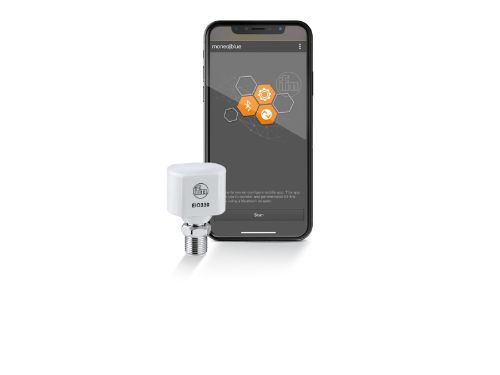
moneo | blue is an app that runs on your Apple or Android smart phones and provides access to all parameters, process values and diagnostics from all sensors connected to an IO-Link master. The Bluetooth™ adapter, EIO330, connects to one port of the IO-Link master and the app can be downloaded free of charge from the Apple App Store or from Google play.